Compare drawing revisions and find what changed
Revision clouds go missing. How to compare PDF drawings between revisions: the whole set, the text, your markups in view, then slip-sheet it in.

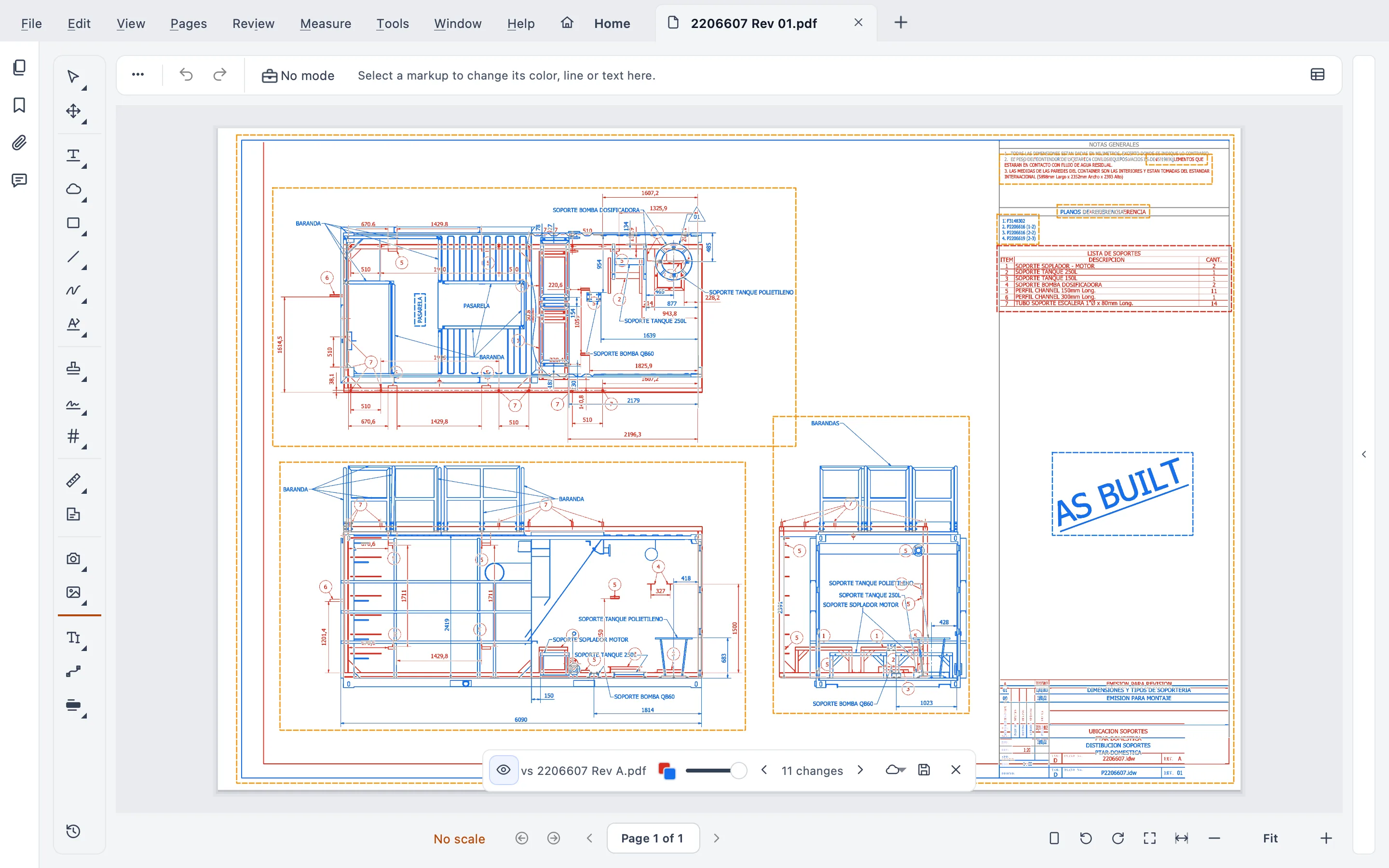
Short answer: compare the new revision against the old one, every time, even when it’s full of clouds. Revision clouds are a courtesy from the designer, not a guarantee. Checking by eye fails on dense sheets, and an overlay in another program is only as good as its alignment. What works for me: compare the whole set, check the text too, keep my markups in view while I compare, and slip-sheet the new revision into the current set.
I’m Gus Mejía, construction project manager at Plano Base Arquitectos. Today I find changes three ways: overlaying the two revisions in another program, going sheet by sheet by eye, and trusting the designer’s clouds. All three work halfway. Here’s why, the method that covers the gaps, and how to do it in Stamppa.
Why clouds aren’t enough
A revision cloud marks what the designer remembered to mark. Almost always, that’s everything. Almost.
It happened to me. A change came in without a cloud, we missed it in review, and we paid for it later. I’m not telling it to blame anyone. Anybody can leave a cloud out. Me included.
The catch is that whoever builds it is on the hook. So use the cloud as a place to start, not as the full list of what changed. I said it in the guide on contract documents: check what actually changed.
Why the eye and the overlay miss things
By eye. On a light sheet, flipping between the two revisions side by side works. On an MEP plan or a detail with forty notes, it doesn’t. It’s spot-the-difference with four hundred lines and no answer key. You find the ones you’re looking for and miss the rest.
With an overlay. Laying one revision over the other in another program helps a lot more. But it’s geometry: if the two sheets don’t share an origin, everything after that is off. A drawing shifted a few millimeters fills the screen with differences that aren’t changes, and the real change hides in the noise. And you end up with a third PDF to name, file and not mix up with the other two.
Watch for this in any program, Stamppa included: comparing assumes both revisions are drawn in the same spot on the sheet. If the designer moved the drawing or changed the sheet size, you’ll see differences that aren’t changes.
The method: four steps
This is a recommendation, not a rule. It’s what has worked for me.
- Compare the whole set first. That tells you which sheets changed, clouded or not.
- Check the text, not just the linework. Notes, dimensions and specs written on the sheet change without a single line moving.
- Compare with your markups in view. If a change lands on one of your questions or an open RFI (request for information), you see it right away.
- Slip-sheet the new revision into the current set. The old sheet goes, your markups stay.
Now, how to do each step in Stamppa, with the names the app uses.
How to do it in Stamppa
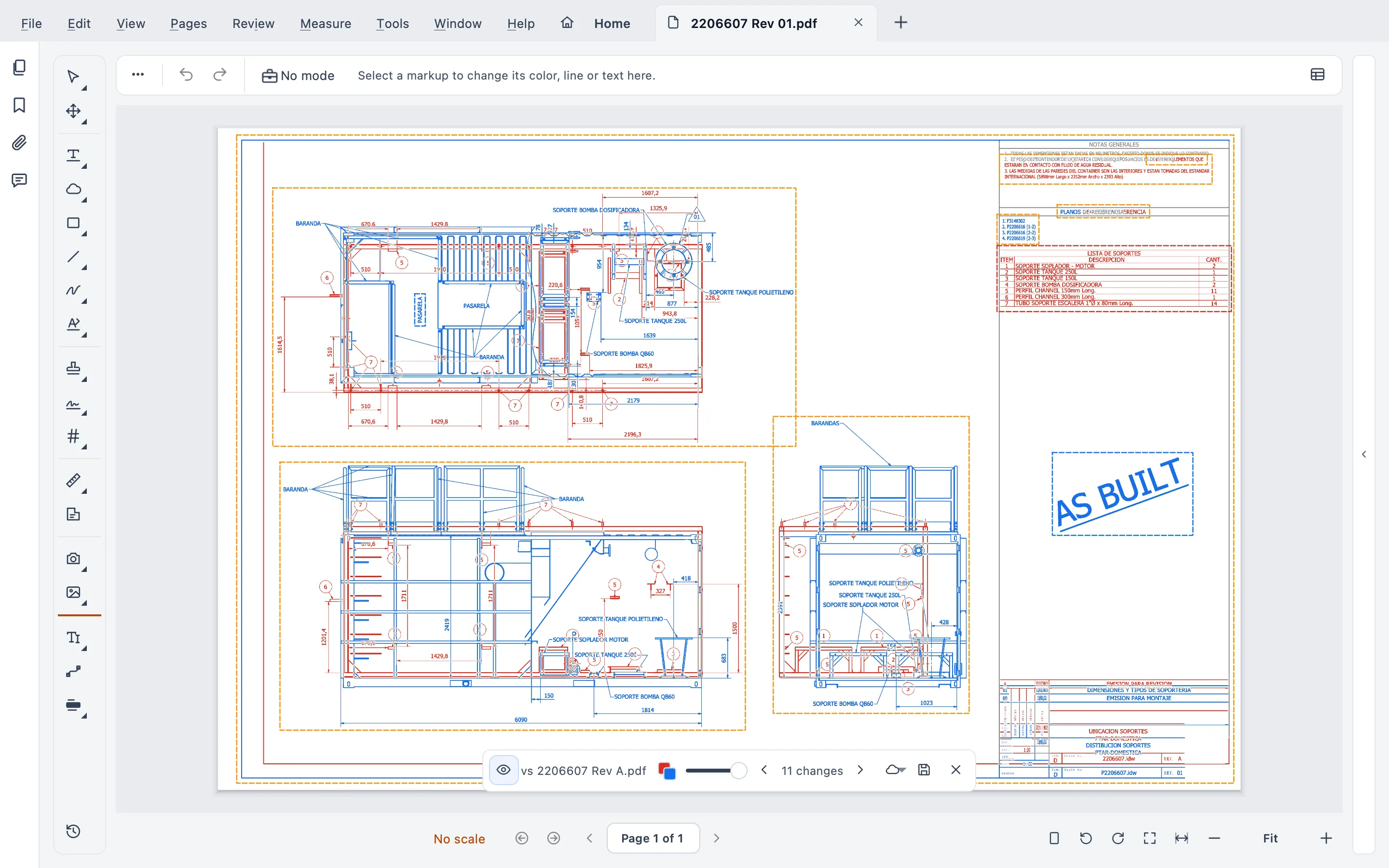 Live compare of two real revisions of the same sheet. Some views moved between them, which is why the regions are large: step through each one with the bar.
1. Compare the whole set
Choose Tools ▸ Run a tool ▸ Compare a set… and pick the old issue and the new one. Stamppa pairs the sheets by sheet number and shows you the pairs so you can correct them. Run it and you get a Set compare report as PDF and CSV, sheet by sheet.
It also carries your markups from the old set onto copies of the new files. Your originals don’t change. Because it pairs by sheet number, a reordered set still compares sheet to sheet.
2. Step through each sheet that changed
Open the new revision of the sheet and choose Review ▸ Compare with older revision…. Pick the older one, from another tab or a file, leave Compare the drawing checked and click Compare.
The differences show on the sheet itself, in two colors: what only the older revision has (removed) and what only this one has (added). On the compare bar, Previous change and Next change take you from one to the next, with a count beside them. The slider turns the comparison up or down, and the eye shows or hides it. No new PDF is created: the comparison is a view, and when you close it the file is as it was.
Your markups keep their own colors while you compare. So if you had a cloud or an RFI note on that wall, you see right away whether the change touches it.
3. Compare the text
In the same options box, check Compare text. Stamppa lists the words added, removed, changed or moved, page by page, with a report. Ignore capitals treats “NOTE” and “Note” as the same word, and extra spaces and line breaks are always ignored.
This is where the changes the linework doesn’t show turn up: a spec note that switched materials, a schedule, a title block, and a dimension when the drawing carries it as text. A scanned sheet has no text to compare. Run Recognize text (OCR) on it first.
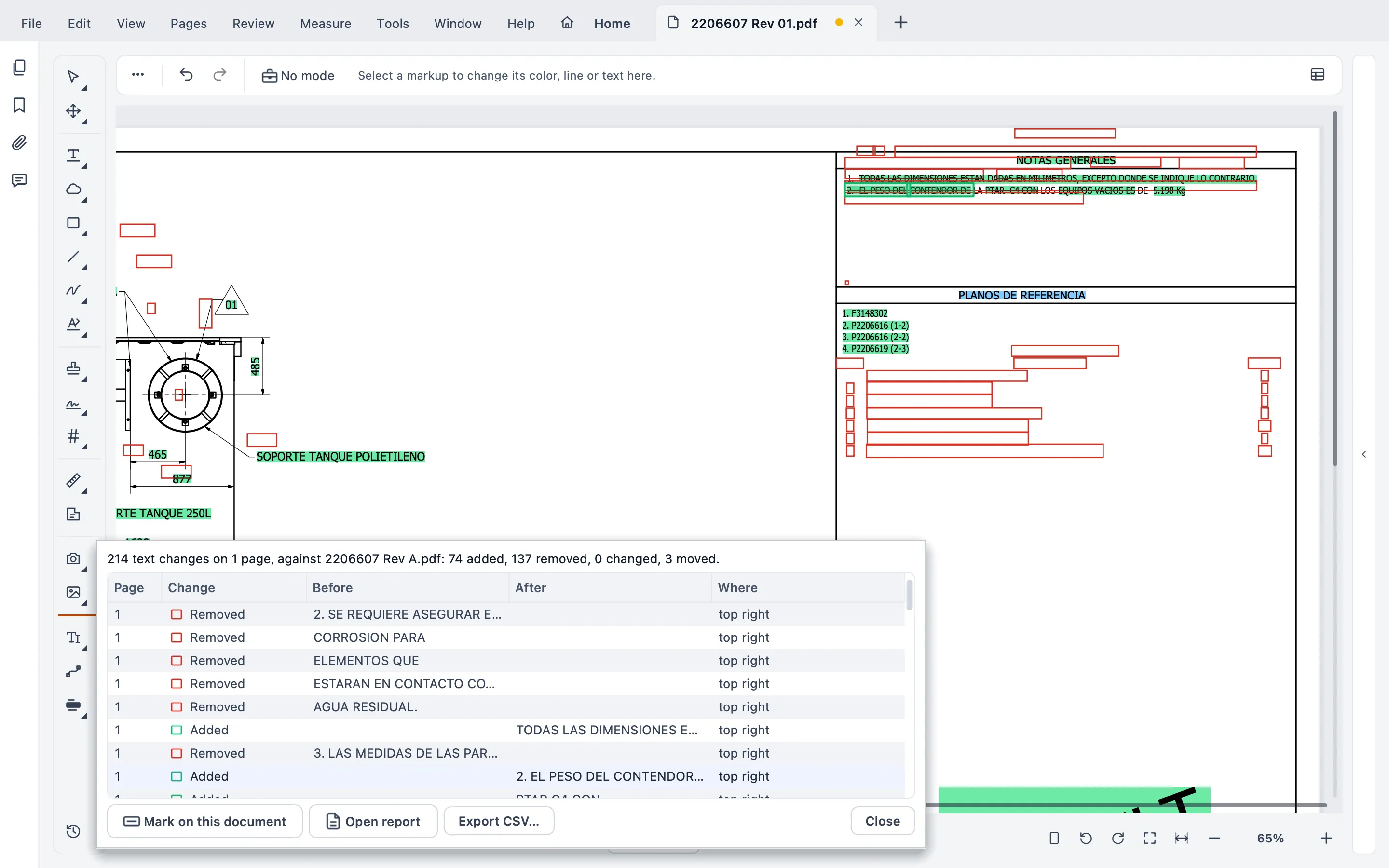 Compare text shows which notes and references changed. Heads-up: if one revision stores its text letter by letter, the count goes up; read the changes, not just the number.
4. Slip-sheet the new revision in
Open the set you’ve already marked up and choose Review ▸ Slip-sheet a new revision…. Stamppa replaces the sheets by sheet number and keeps every markup. New sheets are added at the end. If the new file has no sheet numbers, the pages replace the old ones in order.
Want a record? Turn the changes into clouds with the cloud button on the bar, for that sheet or for all of them, in one step you can undo with Ctrl+Z. But a cloud says where something changed, not whether it matters. That part is still yours.
What the comparison won’t do for you
The comparison tells you what changed. It doesn’t tell you whether the change is right, whether it hits the budget or whether you need to send an RFI. That’s still the judgment of the field engineer and the team, and there’s no shortcut there.
What it does take off your plate is the mechanical part, the searching. Your future self, the one arguing with the contractor in three months about why that note changed, will thank you.
The full steps are in Help: how to compare two PDF drawings. And the compare drawing revisions page sums up what the tool does.
If something doesn’t line up with how your team reviews drawings, email us.
Questions
Can I trust the designer's revision clouds?
As a guide, yes. As a guarantee, no. A cloud marks what the designer remembered to mark. A change without a cloud is still a change, and whoever builds it is on the hook. Compare the new revision with the old one even when it comes clouded.
How do I compare two PDF drawings in Stamppa?
Open the new revision and choose Review ▸ Compare with older revision… Pick the older one, from another tab or a file, and click Compare. The differences show on the sheet itself, removed in one color and added in another, and you step from one change to the next with the compare bar.
Does the comparison catch changes in notes and dimensions?
Check Compare text and Stamppa lists the words added, removed, changed or moved, page by page, with a report. That covers notes, schedules and title blocks, and dimensions when the drawing carries them as text. A scanned drawing has no text: run Recognize text (OCR) on it first.
Can I compare a whole drawing set at once?
Yes. Tools ▸ Run a tool ▸ Compare a set… pairs the sheets by sheet number, compares each one and writes a Set compare report as PDF and CSV. It also carries your markups from the old set onto copies of the new files. Your originals don't change.
Do I lose my markups when I replace a sheet with its new revision?
No. Review ▸ Slip-sheet a new revision… replaces the sheets by sheet number and keeps every markup. New sheets are added at the end.