Received stamp on drawings: why and how
A Received stamp is the first step of document control on a construction project. What it should say, and how to batch stamp a whole PDF drawing set.

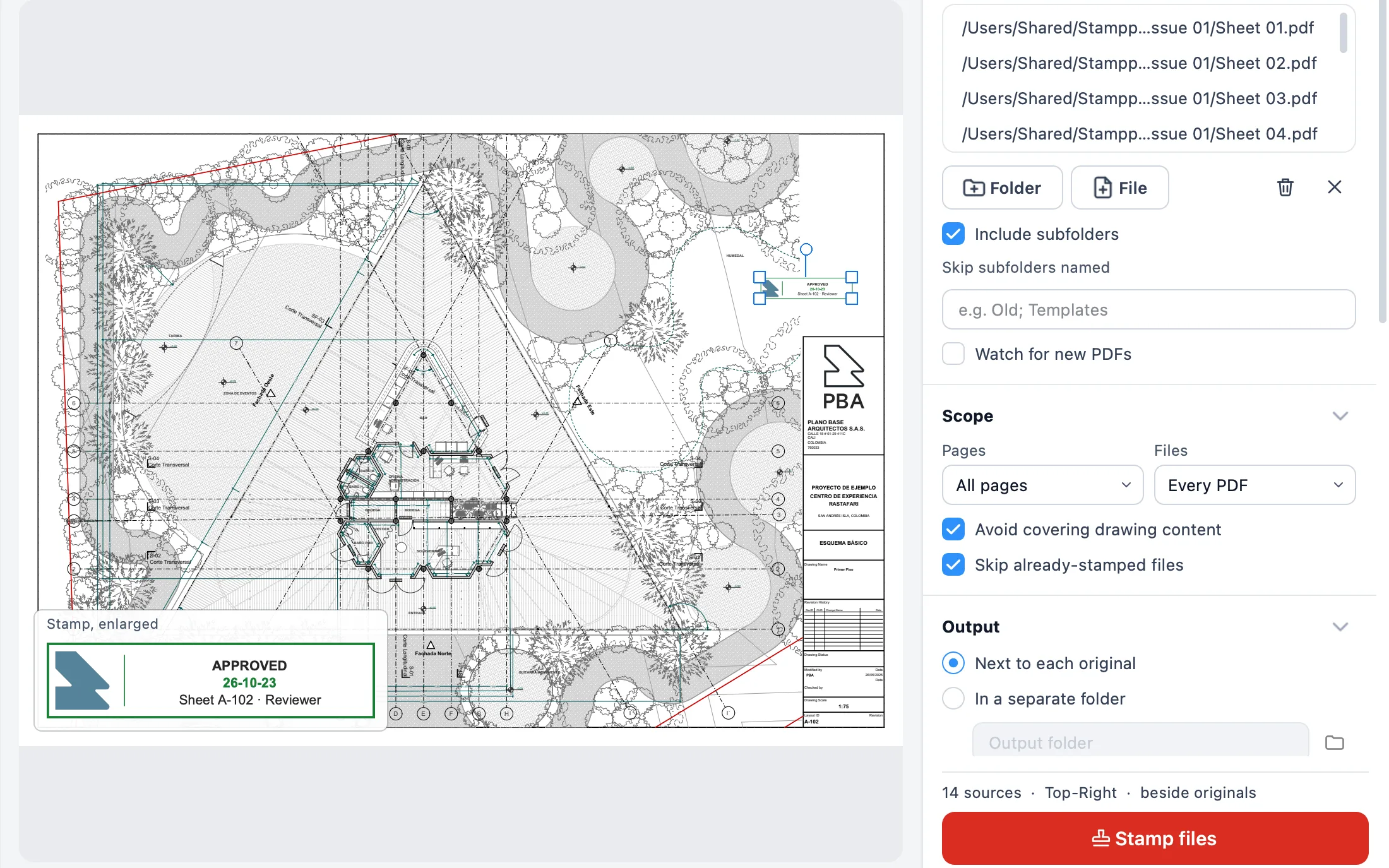
Stamp every drawing set the day it arrives, before anyone uses it. The Received stamp records what came in, when, in which revision and from whom. Every stamp that follows (Reviewed, Approved, For Construction) rests on that first one.
Stamping on receipt is saving the game before the boss fight. If something goes wrong later, you reload from a known point, not from whatever each person remembers.
I’m Gus Mejía, construction project manager at Plano Base Arquitectos. On our projects we stamp everything that comes in, and we do it in Stamppa.
What a stamp puts on record
The problem isn’t the set arriving. It’s what happens to it the week after. It comes in by email, through a shared folder or on a USB stick, and a week later there are copies on three laptops, on the site printer and on a subcontractor’s phone. The email it came with is buried. Sometimes the file name doesn’t even say which revision it is.
The stamp fixes the facts on the sheet, where nobody loses them:
- What came in: the sheet number and revision.
- When it came in: the date you received it.
- From whom and under what: who sent it and the transmittal number.
- Who logged it: the person who received it.
That’s document control in its simplest form. The drawing register and the transmittals tell the story in a list. The stamp tells it on the sheet, because the superintendent works from a printed sheet, not from the register. That’s how they know where it came from.
The stamps that come after
“Received” is only the first status. On most projects a document goes through several, and each one deserves its stamp:
- Received: it arrived. It says nothing about the content.
- Reviewed: someone looked at it. On a document submitted for approval, this is usually where comments start.
- Approved: accepted as submitted.
- Approved as noted: accepted, with the comments marked on the sheet.
- Revise and resubmit: not accepted; a new revision has to be sent.
- For Construction: this is the sheet you build from.
The exact words, and what each status means, change with the company and the contract. This is a recommendation, not a rule: agree on them at the start of the job (with the designer, the contractor and the owner’s rep or inspector) and use the same words on every stamp. That way the field engineer doesn’t have to guess what “Reviewed” meant this time.
What happens when you don’t stamp
Superseded sheets in the field
This is the one I see most. Rev C arrives, but Rev B is still taped to the wall of the site trailer and sitting in the foreman’s binder. Without a stamp, both look equally official. Building from B is aiming at a target someone already moved: a clean shot, in the wrong place. With a Received stamp that carries the date and the revision, the old sheet is easy to spot and pull.
It happened to me: a superseded sheet made it to the site. We caught it in time, before anything was built. But that day made it clear that the only defense is knowing, beyond any doubt, which revision is current.
Arguments about what was delivered and when
Months later someone says “we never got that detail” or “we sent that revision in March.” Without a record, it’s your memory against theirs. A dated stamp on the sheet, together with the transmittal and the email, settles most of those conversations in a minute.
I’ve had one of those arguments. The stamp settled it, because the received date was on every sheet. End of argument.
No record of the date received
Many construction contracts have deadlines that run from the day you receive something: a drawing, an instruction, the answer to a question. If you can’t show when a document arrived, it can be hard to show you acted on time.
One caveat: I’m not a lawyer and this isn’t legal advice. Whether a stamp works as proof, and which dates matter, depends on your contract and where you work. Read the contract and ask your counsel. In the meantime, keep the record. Stamp it the day it arrives.
What a good Received stamp includes
Short, so it fits in a corner of the sheet, but complete:
| Field | Why |
|---|---|
| RECEIVED | The status, in big letters. |
| Date received | The day it arrived, not the day you got around to stamping it. |
| Received by | Who logged it, so questions reach the right person. |
| Project | Drawings travel between jobs more than you’d think. |
| Sheet number and revision | Exactly what it is. |
| Transmittal number | Ties the sheet to the transmittal it came under and to the drawing register. |
Put it in the same place every time, clear of the drawing, usually near the title block. A stamp that covers a dimension causes the very problem it was meant to prevent.
Stamping a whole set in one go
Stamping one sheet by hand is easy. Stamping 140 sheets the afternoon a revised set arrives is a different story, and that’s where people skip it. I get it. That’s why I built Batch Stamp, the tool Stamppa started with: one stamp on a whole folder of PDFs, in one run.
I know what you’re thinking: it’s one more step on an afternoon that’s already full. But the stamp takes a minute, and the argument it prevents can take weeks. Your future self, the one having that argument with the sub in three months, will thank you.
Here’s what makes it work for receipt stamps:
- Dynamic fields. You write the stamp once and Stamppa fills in each sheet’s details.
{sheet}and{rev}are read from each sheet’s title block (or the file name if it finds none),{date}is the stamp date,{user}is your name and{seq}is a running number. In other words,RECEIVED {date} · {sheet} Rev {rev} · {user}becomesRECEIVED 2026-10-22 · A-101 Rev B · G. Mejíaon sheet A-101, and the right values on every other sheet. - Templates. Save your Received, Approved and For Construction stamps as templates, and the whole team stamps the same way. Templates are also files (
.stamppastamp): you can design one in the browser demo on stamppa.com and open it in the app. - A check before every run. Stamppa looks for clear space on each sheet and moves the stamp off the drawing. If a sheet has no room, it tells you before anything is stamped.
- A record of the run. Turn on Transmittal CSV for each run and Stamppa writes a CSV listing every file stamped, skipped or archived. File it next to the incoming transmittal.
- Superseded archive. With Archive previous version on, when a newly stamped file replaces one with the same name, the old one moves to a
Supersededfolder beside it instead of being overwritten. - Undo. Stamped the wrong folder? Undo last run… puts every file back as it was.
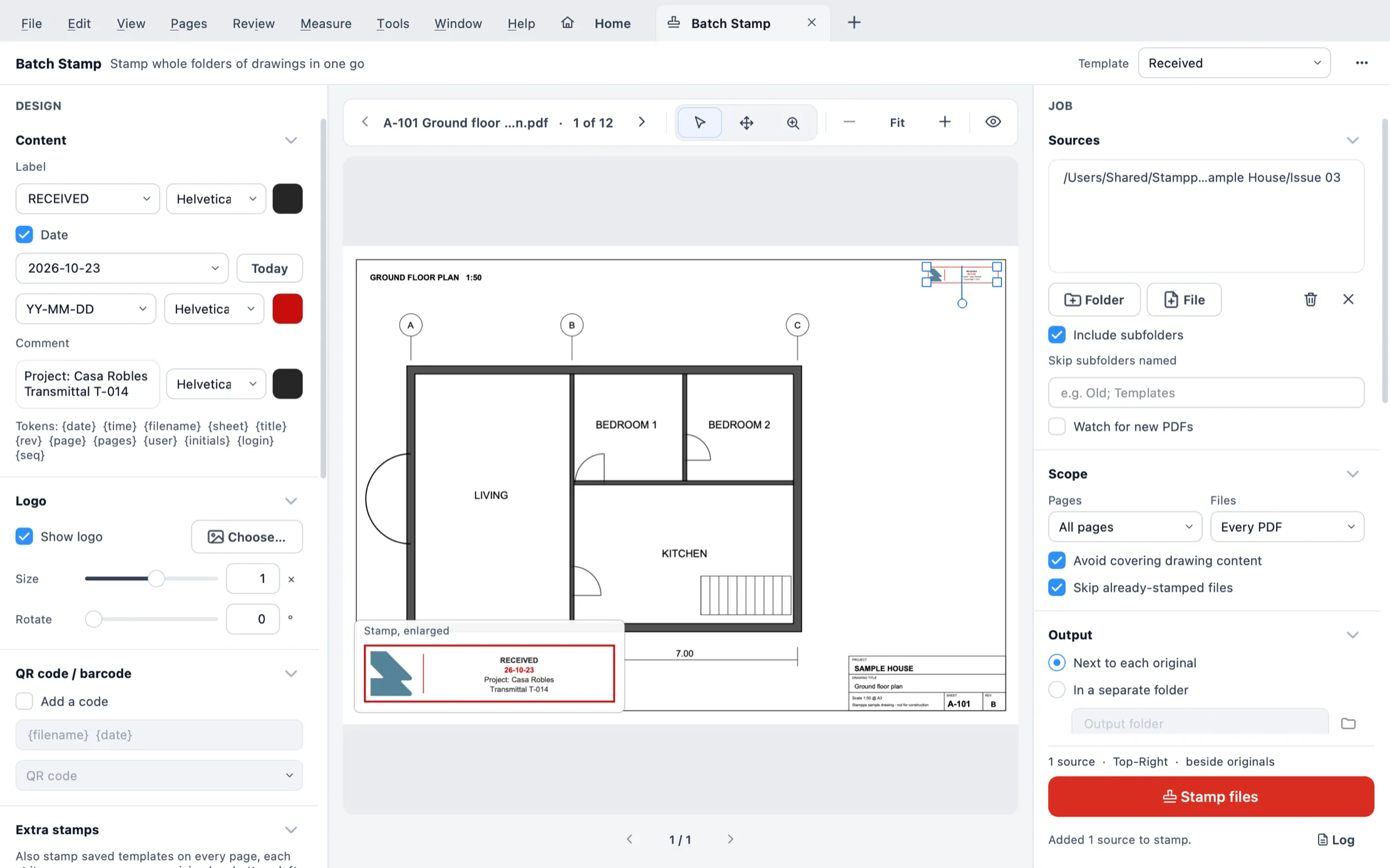 The Received template filled in, with the set in Sources and the stamp in place on the preview.
For a single sheet you don’t need Batch Stamp. Open the PDF and use the stamp tool in the editor, with the same stamps you designed in Stamp Studio.
How to stamp a set that just arrived, in Stamppa
- Put the incoming set in its own folder, with the transmittal number in the name (for example
Issue 03 - T-0147). - Open Tools ▸ Batch Stamp (Ctrl+Shift+B). If you opened the drawings as a sheet set, Batch Stamp the set… opens it with the files already added.
- In Design, pick your Received template, or type the label
RECEIVEDand add the fields, for example{sheet} Rev {rev} · {user}. Check that the date is the day the set arrived. Type the project and the transmittal number in the comment, one per line. - In Sources, add the folder (or drop it on the tab).
- Drag the stamp on the preview to its place, clear of the title block and the drawing.
- Under Originals & history, turn on Transmittal CSV for each run, and also Archive previous version if this set replaces an earlier one.
- Click Stamp files. If the check shows sheets with no clear space, read it, then stamp.
- Save the design as a template (Save as template…), so next week’s set takes you one minute.
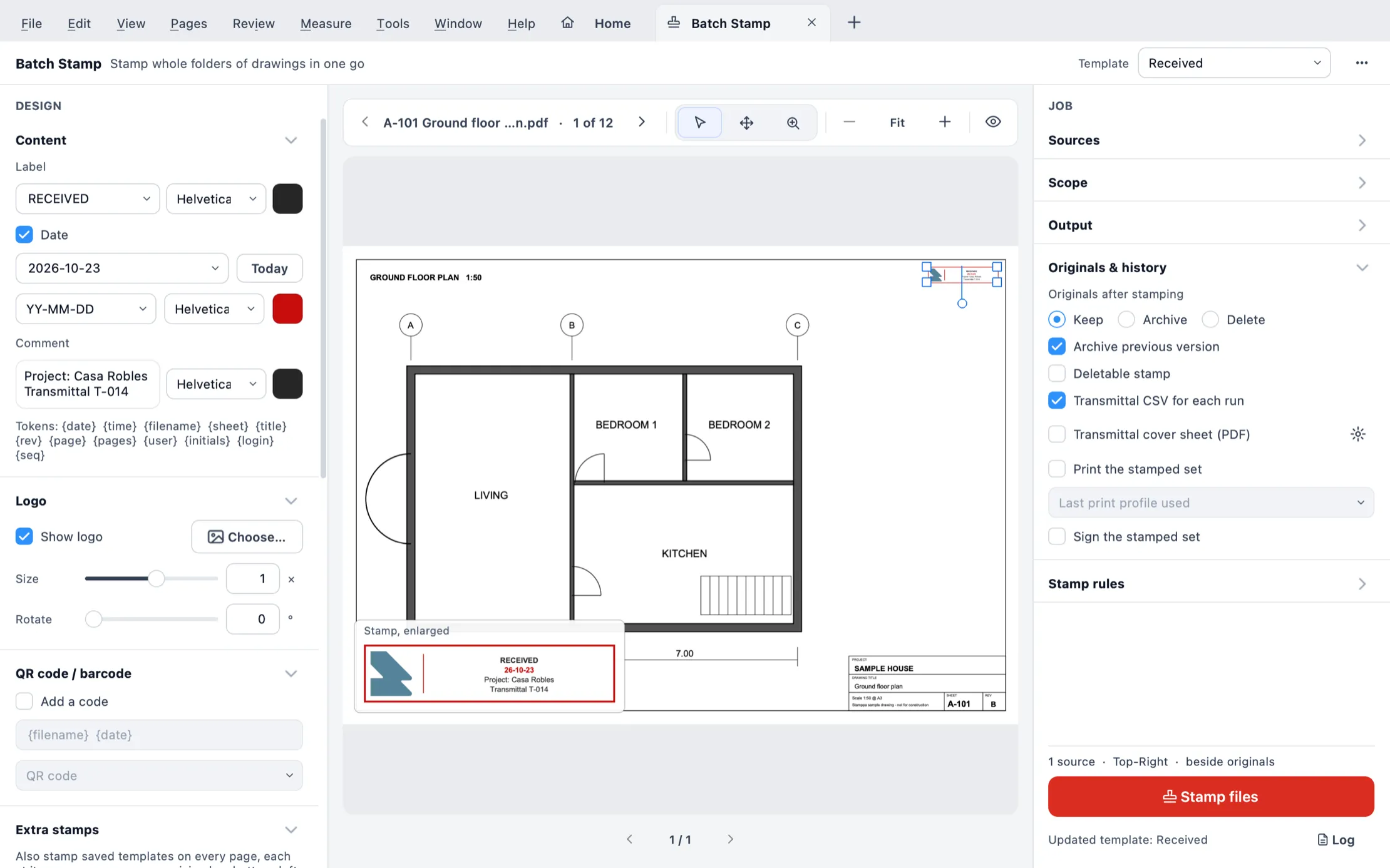 Originals & history: the transmittal CSV and the archive of the previous version are on.
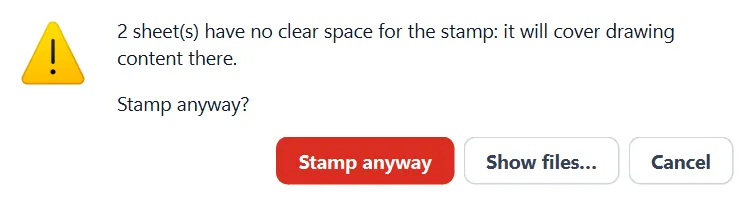
The exact clicks, and every field, are in Quick start: Batch Stamp a drawing set.
One habit, every set
At Plano Base I stamp every delivery as soon as it arrives, and we stamp everything we receive, no exceptions. Setting up the template takes a while the first time. After that, with Batch Stamp, it’s part of the routine, not a separate chore.
Received isn’t the last stamp. When you answer, stamp it again with the status that applies and keep the transmittal with the sheet.
If any of this doesn’t line up with how your team logs incoming sets, email us.
See everything Batch Stamp can do on a whole drawing set, or try it first on up to 10 sheets in the browser demo.
Tested with Stamppa 27.0.0.
Questions
Do I really need to stamp drawings when I receive them?
Yes, if you want a record of what came in, when, which revision and from whom. An email or a download folder gets lost, renamed or overwritten. A Received stamp puts that record on the sheet itself, where everyone who opens it sees it.
What should a Received stamp say?
At least the date received, who received it, the project, the sheet number and revision, and the transmittal it came under. Stamppa fills in the date, the sheet number, the revision and your name on each sheet by itself.
Is a dated Received stamp legal proof of when I got the drawings?
It's a record, and a good one. But what counts as proof or as notice depends on your contract and where you work. Read the contract and ask your counsel. Keep the stamp, the transmittal and the email together.
What is the difference between a Received stamp and a review stamp?
A Received stamp only records that a document arrived. A review stamp (Reviewed, Approved, Approved as noted, Revise and resubmit) records a decision about it. Use both: one when it comes in, one when you answer.
Can I stamp a whole set of PDFs at once?
Yes. Batch Stamp in Stamppa stamps whole folders of PDFs in one run, fills in each sheet's own details, checks for clear space first and can undo the last run with one click.