PDF measurements wrong? Why, and how to fix it
PDF measurements go wrong because of the scale: one scale for a whole sheet, a fit-to-page copy, a short calibration. How to calibrate a PDF scale right.

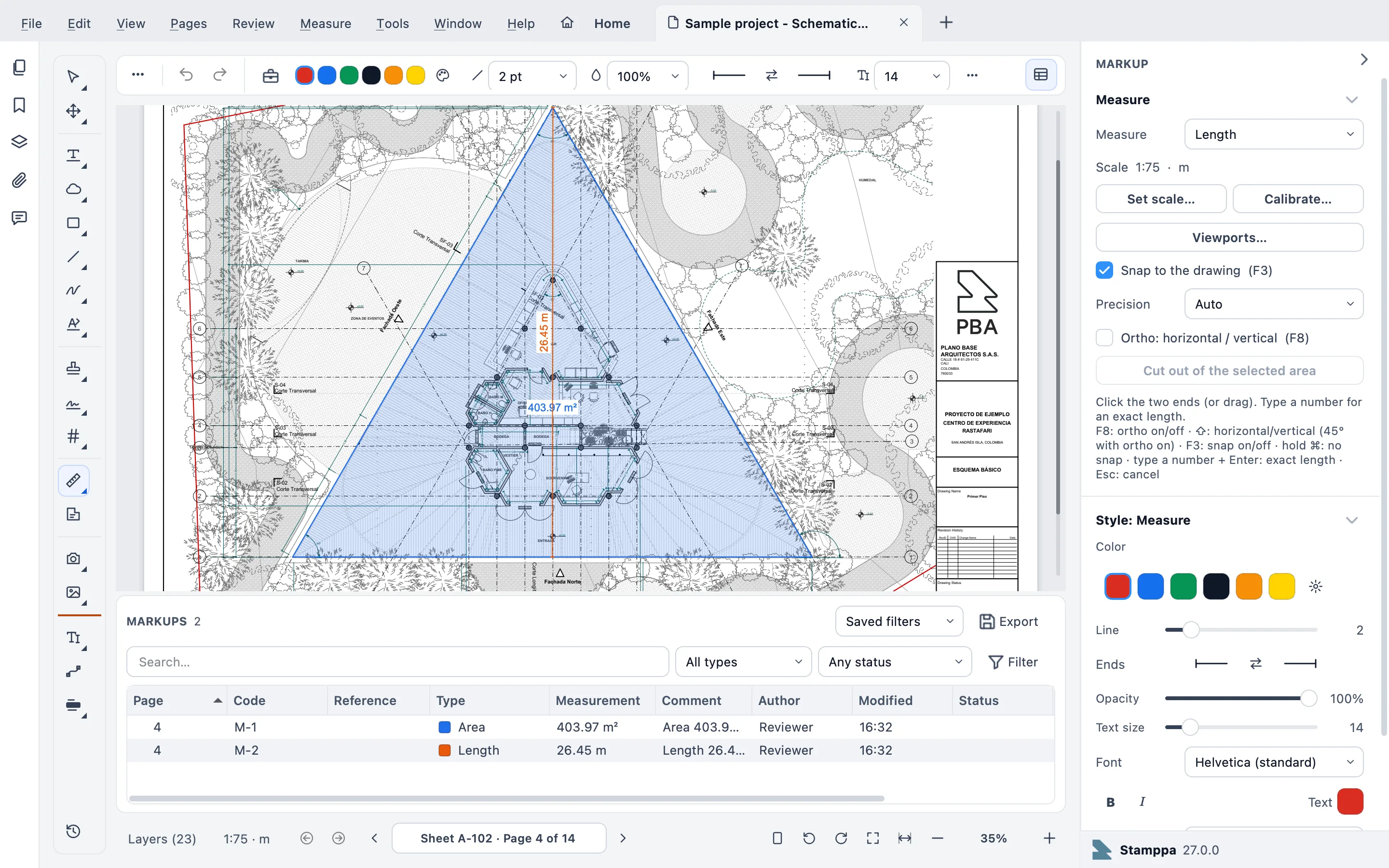
When a measurement on a PDF drawing comes out wrong, it’s almost never the software. It’s the scale. The click can be perfect and the scale wrong, and then everything you measure after that inherits the same error.
The fix fits in one sentence: calibrate on the longest dimension you can find, check it against a second one, and give each detail its own scale. The rest of this guide explains why, and how to do it in Stamppa.
I’m Gus Mejía, construction project manager at Plano Base Arquitectos. These are the mistakes I see most when people take off quantities from a PDF.
The two mistakes I see most
Trusting a measurement without checking it against a known dimension
This is the first one, and the most common. Someone sets the scale, measures, the number looks reasonable and it goes straight into the estimate. Nobody checked it against anything.
A number that looks reasonable isn’t a number you’ve checked. It’s serving the soup without tasting it. It may be fine, but you won’t know until someone tastes it at the table, and by then it’s too late.
The rule is simple. Before you measure the rest of the sheet, measure a dimension that’s already written on the drawing. If it doesn’t match, the scale is wrong. So is everything you measure next.
Several scales on one sheet, measured with one
The second mistake is sneakier, because the scale is right. Just not for the whole sheet.
Plenty of sheets put the plan at one scale and the details at another: the plan at 1:100 and, in the corner, a detail at 1:20. Measure the detail with the plan’s scale and every number comes out five times too big. It doesn’t look absurd at a glance, so it gets through.
Sounds obvious. It isn’t, especially when you’re moving fast on a crowded sheet.
Other common causes
These don’t come from my own experience in particular. They’re the general causes worth ruling out every time a number doesn’t add up.
The PDF was exported or printed “fit to page”
When someone exports or prints a drawing with fit to page, the drawing is resized to fill the sheet. The title block still says 1:50, but the paper isn’t 1:50 anymore. Measuring at the title block’s scale gives you a clean, wrong number.
That’s why you shouldn’t trust the label. Calibrate on a printed dimension. If the sheet has a graphic scale bar (the little bar with 0, 1, 2, 5 m), that works too, because it shrinks along with the drawing.
Calibrating on a short dimension
When you calibrate, you click two points. No click is perfect. On a short dimension, that small error is a big part of the total. On a long one, it barely counts. Half a millimeter of click error on paper weighs ten times more on a 3’ dimension than on a 30’ one.
It’s like sighting in a rifle: a hair off at the muzzle is a foot off at the target. Calibrate on the longest thing you have, grid line to grid line or end to end of the building.
Units that don’t match
A sheet dimensioned in millimeters, a calibration typed in meters, or a dimension in feet read as meters. The number comes out a thousand times too big, or about three times off, and sometimes nobody notices until the estimate. Always type the unit with the value.
Different X and Y scales on scanned sheets
A scanner doesn’t always stretch the page the same across as up. The result: horizontal measurements come out right and vertical ones don’t, or the other way around. If you only check a horizontal dimension, you won’t catch it.
How to measure right in Stamppa
The steps and the exact button names are in How to measure a PDF drawing to scale. This is the method I recommend, with the tools the app has.
- Open the PDF and check the scale it came with. Press N to measure. The Measure section of the markup panel shows the page scale. If the sheet comes from Acrobat or Bluebeam with a scale or viewports, Stamppa reads them. If the page has no scale, it measures 1:1 in millimeters and Stamppa tells you so.
- Calibrate on the longest dimension. Click Calibrate…, click the two ends of the longest printed dimension you can find, and type its real length with the unit:
40',10'-6"or12 m. Check the unit in Measure in too (metric, or feet and inches). - Check it against a second dimension. Measure another dimension that’s already written, far from the first one. If it matches, keep going. If not, calibrate again before you measure anything else.
- Give each detail its scale. Click Viewports…, drag a box around the detail and give it its scale (for example 1:20 on a 1:100 plan). Measurements inside the box use that scale. The ones outside use the page’s.
- On scanned sheets, calibrate X and Y separately. In Calibrate…, check Separate vertical scale. After the horizontal dimension, click a known vertical one.
- Snap to the drawing. With Snap to the drawing (F3), points jump to line ends, midpoints, intersections and perpendiculars of the sheet’s linework, and to arcs, circles and door swings too. Hold Ctrl (⌘ on a Mac) to place a point freely. If you know the length, type the number and press Enter.
- Take the quantities to Excel. Press Ctrl+L to open the Markups list and choose Export ▸ Takeoff: measurement totals to Excel…. For a workbook that stays current, use Measure ▸ Quantity link ▸ Link to Excel….
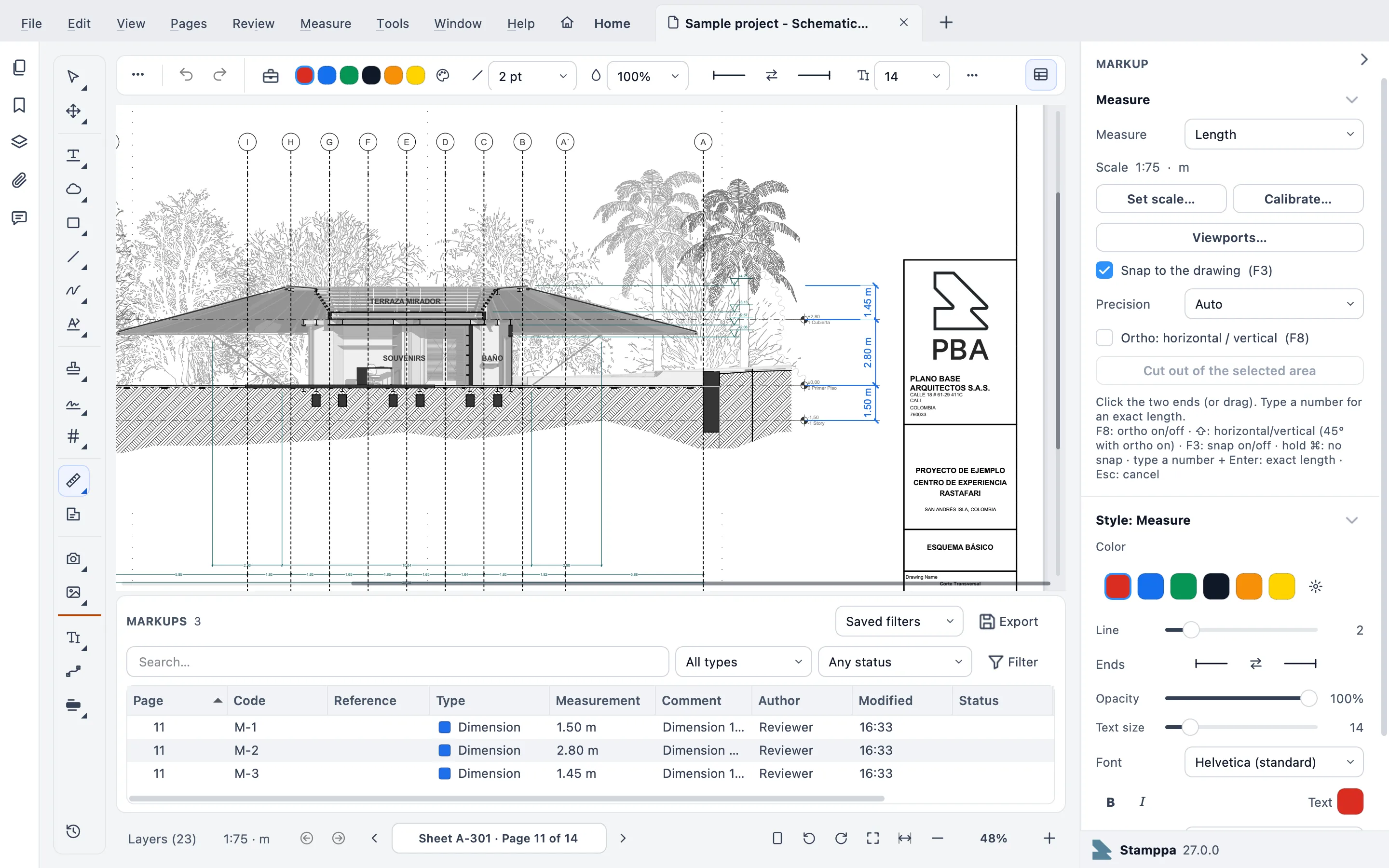 The page scale sits in the Measure section, with Calibrate… and Viewports… right below it.
The scale is saved in the PDF, with the measurements. In other words, the next person who opens the file measures with the same scale you checked.
A minute that pays for itself
Checking a second dimension takes a minute. Redoing a takeoff because the scale was off takes an afternoon, and if the number already made it into the estimate, a lot longer. Your future self, the one defending those quantities in a meeting, will thank you.
If something doesn’t line up, email us.
See everything you can measure in PDF takeoff and measuring to scale.
Tested with Stamppa 27.0.0.
Questions
Why doesn't my PDF scale match the scale in the title block?
Almost always because the PDF was exported or printed with fit to page. The drawing shrinks or grows, but the title block still says 1:50. Don't trust the label: calibrate on a dimension printed on the sheet and check it against another one.
How do I calibrate the scale of a PDF drawing?
In Stamppa, press N to measure, click Calibrate… in the Measure section, click the two ends of a printed dimension and type its real length with the unit, for example 40' or 12 m. Use the longest dimension you can find, then measure another one you already know to check.
What do I do when a sheet has details at another scale?
Give each detail its own scale. In Stamppa, click Viewports… in the Measure section, drag a box around the detail and give it its scale, for example 1:20 on a 1:100 plan. Anything you measure inside the box uses that scale.
Why are my horizontal measurements right and my vertical ones wrong?
That's typical of scanned sheets: a scanner can stretch the page differently across and up. Calibrate with Separate vertical scale checked, first on a horizontal dimension, then on a vertical one.
Does Stamppa read the scale I set in Bluebeam or Acrobat?
Yes. Stamppa reads the page scale and the viewport scales that Acrobat and Bluebeam write into the PDF. Still, check one known dimension before you measure the rest.